
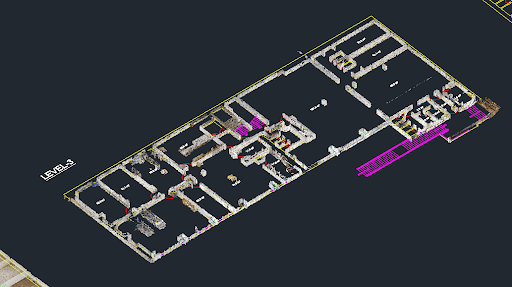
Converting point cloud data into a DWG file is a foundational step for many architecture, engineering, and construction projects. This process transforms a dense collection of 3D data points into a workable CAD model, forming the basis for design, analysis, and documentation. However, the path from a raw scan to a polished DWG drawing is filled with potential pitfalls.
Getting this conversion right is not just about technical accuracy; it’s about efficiency and project success. A flawed conversion can lead to inaccurate models, costly rework, and significant delays. This guide will walk you through the most common mistakes made when you convert point cloud to DWG and provide practical solutions to help you achieve precise and efficient results every time. By understanding these challenges, you can streamline your workflow and ensure your final drawings are reliable.
Understanding Point Cloud Data
Before diving into the conversion process, it’s essential to understand what point cloud data is. A point cloud is a massive set of data points in a three-dimensional coordinate system. These points represent the external surfaces of objects or environments and are captured by 3D scanning technologies. Each point has its own set of X, Y, and Z coordinates, and may also contain additional information like color (RGB) or intensity values.
The two most common sources of point cloud data are:
- LiDAR (Light Detection and Ranging): This technology uses laser pulses to measure distances and create highly accurate and dense point clouds. It’s widely used in surveying, architecture, and autonomous vehicle navigation.
- Photogrammetry: This technique involves taking multiple photographs of an object or area from different angles and using software to triangulate the points in 3D space. It is a cost-effective method for creating detailed 3D models and is popular in fields like archaeology and visual effects.
Regardless of the source, the raw data must be carefully processed to become a useful model for CAD drafting.
Mistake 1: Incorrect Data Preparation
One of the most frequent errors occurs before the conversion even begins: failing to properly clean and preprocess the raw point cloud data. Raw scans often contain unwanted noise, such as moving objects (people, vehicles), atmospheric interference, or reflections that create outlier points. Jumping straight to conversion without cleaning this data leads to an inaccurate and messy DWG file.
How to Fix It
Proper data preparation is a non-negotiable first step. This involves a few key techniques:
- Filtering and Noise Reduction: Use software tools to apply filters that automatically remove stray points and reduce noise. Statistical Outlier Removal (SOR) and Radius Outlier Removal (ROR) are common filters that identify and eliminate points that fall outside a defined statistical range or neighborhood.
- Registration: If your project involves multiple scans, they must be precisely aligned into a single, cohesive point cloud. This process, known as registration, ensures all parts of the model match up correctly. Manual or automatic registration techniques use common points or targets across different scans to merge them accurately.
- Segmentation: To make the data more manageable, segment the point cloud into logical parts, such as floors, walls, and ceilings. This simplifies the modeling process and allows you to work on specific sections without being overwhelmed by the entire dataset.
Mistake 2: Inadequate Software Selection
Not all software is created equal. Choosing a tool that is incompatible with your file formats, lacks the necessary features, or is simply outdated can cripple your workflow. Some software may struggle with large point cloud files, leading to slow performance or crashes. Others might not offer the advanced modeling and feature extraction tools needed for a clean conversion.
How to Fix It
Select your software strategically based on your project’s specific needs.
- Check File Compatibility: Ensure the software supports the file formats you’re working with (e.g., .LAS, .E57, .PTS) and can export to the required DWG version.
- Evaluate Tools and Features: Look for software that offers robust point cloud processing capabilities. This includes tools for automatic feature extraction (recognizing planes, cylinders, etc.), sectioning, and mesh creation. Programs like Autodesk Recap, Leica Cyclone, and Trimble RealWorks are industry standards for a reason.
- Consider Performance: Large point clouds can be resource-intensive. Check the software’s system requirements and, if possible, test it with a sample of your data to gauge its performance.
Mistake 3: Ignoring Coordinate Systems
A critical but often overlooked error is neglecting to align coordinate systems. Point cloud data and CAD drawings may exist in different coordinate systems. If this discrepancy isn’t addressed, the converted DWG file will not be correctly scaled, oriented, or positioned, making it useless for integration with other project data.
How to Fix It
Always verify and align coordinate systems before and during the conversion process.
- Establish a Common Coordinate System: Before scanning begins, define a project-wide coordinate system. This can be a local grid or a recognized geodetic system (like State Plane or UTM).
- Use Control Points: Place and survey control points on-site that are visible in the scans. These known points can be used to accurately georeference the point cloud data within your chosen software.
- Software Alignment Tools: Use the transformation and alignment tools in your point cloud software to match the scan data’s coordinate system with the target DWG coordinate system. This ensures the final model is geospatially accurate.
Mistake 4: Oversimplifying Meshing
When converting point clouds to surfaces, many users create a mesh that is either too simple or too complex. An oversimplified mesh will lose critical details, resulting in a model that smooths over important features like sharp corners or small elements. Conversely, an overly dense mesh can create a file that is enormous and difficult to work with in CAD software, without adding meaningful detail.
How to Fix It
The goal is to find the right balance between detail and performance.
- Optimize Mesh Settings: Experiment with meshing algorithms and settings. Pay attention to parameters like maximum edge length, polygon count, and decimation levels.
- Adaptive Meshing: Use software that supports adaptive or variable-density meshing. This technique creates a denser mesh in areas with high detail and a simpler mesh in flat, uniform areas, optimizing both file size and accuracy.
- Targeted Modeling: Instead of converting the entire point cloud to a single mesh, focus on extracting key geometric features. Model flat surfaces as planes, pipes as cylinders, and so on. This approach often produces a cleaner, more lightweight, and more intelligent CAD model.
Mistake 5: Improper File Management
A disorganized workflow can cause as many problems as a technical error. Poor file naming conventions, lack of version control, and scattered file storage make it difficult to track progress, collaborate with team members, and troubleshoot issues. When you need to revisit a project months later, a messy file structure can turn a simple task into a frustrating search.
How to Fix It
Establish a clear and consistent file management protocol from the beginning.
- Standardized Naming Conventions: Create a logical system for naming files. Include information like the project name, date, scan location, and version number (e.g., ProjectX_SiteA_2024-10-26_V1.las).
- Organized Folder Structure: Set up a clear folder structure that separates raw data, processed data, intermediate files, and final deliverables.
- Version Control: Use version control practices to keep track of changes. Always save new iterations as new files rather than overwriting old ones, ensuring you can always revert to a previous stage if needed.
Master Your Conversion Workflow
Successfully converting a point cloud to a DWG file requires a combination of the right tools, techniques, and processes. By avoiding these common mistakes, you can ensure your CAD Drafting is built on a foundation of accuracy and reliability. Taking the time to properly prepare your data, select the right software, manage coordinate systems, optimize your models, and maintain organized files will save you time and prevent costly errors down the line. With these best practices, you can transform complex point cloud data into precise, workable CAD models that drive your projects forward.